Some downloads are easy to deal with. You recognize the file, know where it belongs, and can put it away. Others are more awkward. Maybe a document needs a second look, or an archive belongs to a project you haven't finished.
You don't have to decide whether to delete those files on the spot. One approach is to tag them in Finder and review the tagged group later. Trayage 1.1 supports Finder-tag metadata in its custom smart-filter rules, so you can use that familiar macOS feature as one way to narrow the next review.
This isn't a system for automatically filing or deleting downloads. It's a way to keep track of a decision you haven't made yet.
Give uncertain downloads a Finder tag
Open Downloads in Finder. Select a file you recognize but aren't ready to move or remove, then use the Tags button in the Finder toolbar or Control-click the file and choose a tag. You can create a tag such as Review later or choose an existing one.
Apple's guide to Finder tags covers creating, applying, changing, and removing tags. The tag is metadata attached to the file. It doesn't remove the file or change its contents.
Start with only a few items. For example, a document could be waiting for a decision about its permanent folder, while a downloaded archive could be waiting for a project to finish. Avoid using the tag as a permanent place to put everything you don't understand. The goal is to return to the decision.
Review the selected folder in Trayage
Open Trayage 1.1 and select Downloads. Trayage inspects files directly inside the selected folder. It does not recursively include every nested folder. If you tagged a file in a subfolder, that file won't appear in the top-level Downloads review until you choose an appropriate folder.
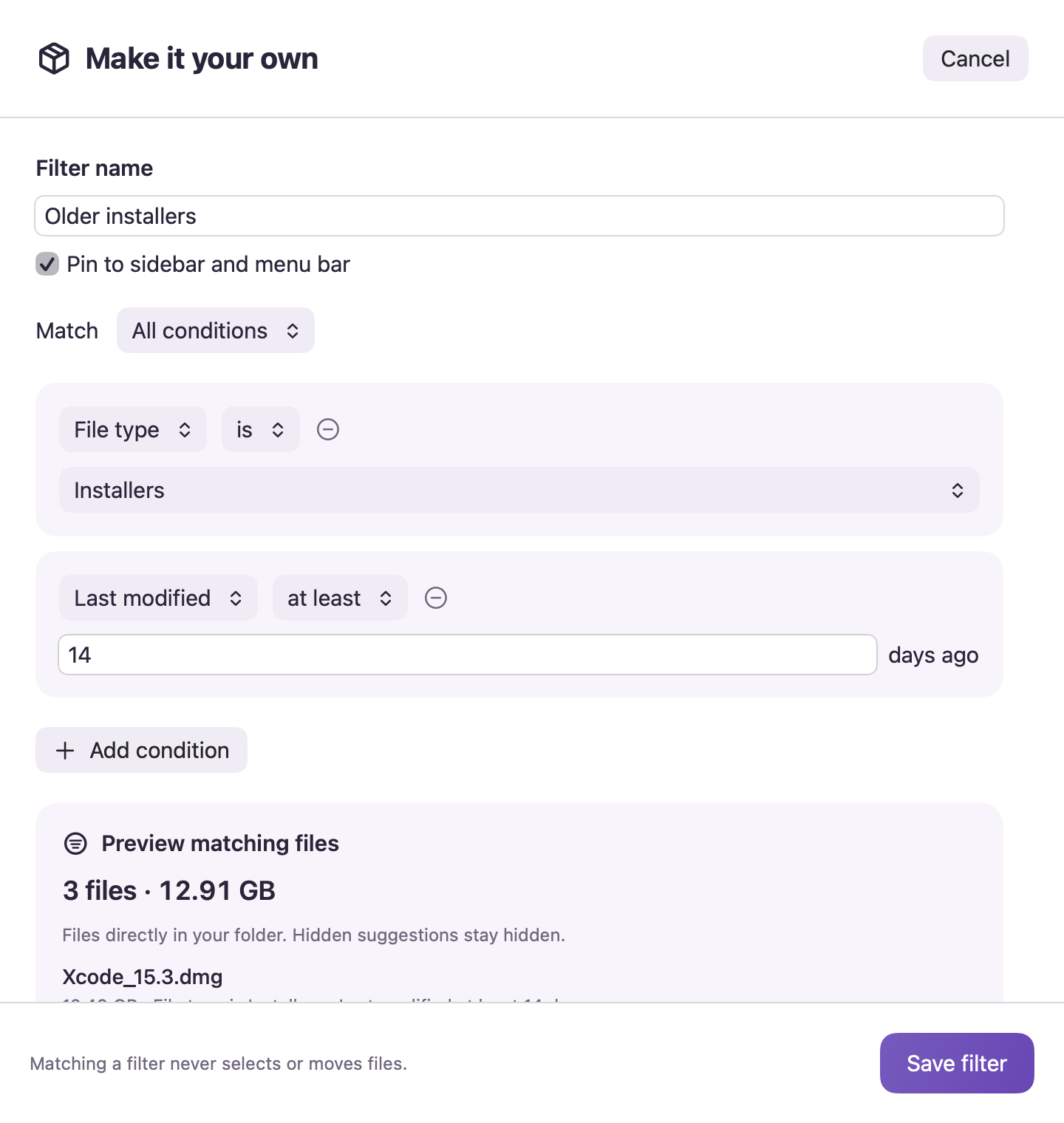
Open the full review window and go to Smart filters. Trayage lets you choose one of 14 presets or Create filter with your own conditions. If you're new to the editor, the Smart Filters guide explains where the library, editor, preview, and saved results appear.
Create a filter with a name such as Review later. Add the condition for Finder tag and set it to match the tag you applied in Finder. The exact matching results depend on the macOS metadata available to Trayage, so use the preview to make sure a file you just tagged actually appears before saving.
You can keep the rule this simple. Adding a file-age or size condition might help with a large queue, but it can also hide a tagged file that doesn't meet the second rule. With All conditions, a file must match every rule; Any condition broadens the results to files matching at least one. A one-rule filter is easier to understand at first.
Decide what the tag means for each file
A saved filter shows candidates for inspection, not a list of files that should be deleted. Select a result and read its details. Use Reveal in Finder when you need to inspect it in place or open a trusted document.
There are several reasonable outcomes. An important document might be moved through Finder to its permanent folder. A file still needed by an active project might stay where it is. An installer might be worth checking against the installed app before you consider cleanup. A file you cannot identify should be left alone until you understand it.
When you've made the decision, remove the Review later tag in Finder. That keeps the queue meaningful the next time you open the saved filter. If you move a file outside the selected folder, it will also stop appearing in that folder's Trayage review.
Only choose cleanup for files you recognize
If a tagged file is genuinely unnecessary, you can select it in Trayage and review the confirmation before it moves to macOS Trash. Nothing is selected for deletion simply because it matches a filter, and Trayage never empties Trash. Keep your backup of important files and inspect Trash before emptying it manually.
File review is free. Cleanup is an optional paid capability, with a seven-day trial in the direct edition that does not create an automatic charge. You can read about availability and purchase options on the Trayage download page.
Keep the queue small enough to be useful
A "review later" tag can help you avoid guessing today without losing the file in a crowded folder. It only works if you actually revisit the tagged items. Start with a small group, save a filter that shows the right files, and remove the tag when the decision is finished.
Download Trayage for Mac and try the workflow with one or two files you already know. You don't need an empty Downloads folder to have a more useful one.
Start with files
worth checking.
Trayage brings installers, possible repeat downloads, and large or older files into one review, with a reason to check each. File review is free. You choose what moves to Trash.
Try Trayage for Mac