A useful weekly Downloads review has three parts: give important files a permanent home, inspect a small group of leftovers, and stop when you are unsure. The goal is to make the next file easier to find, not to leave the folder empty.
This routine works for an ordinary week of forms and receipts or the end of a project with PDFs, exports, and client assets. You can do it in Finder. Trayage is an optional way to bring review suggestions together.
Start with what you still need
Before looking for things to remove, look for things to keep. A receipt you will need later, a file you edited, or an asset supplied for a project deserves a location you can recognize again.
Move those files into a folder that already makes sense to you: a project folder, a household records folder, or Documents. Check first if an active app or project relies on the current file location. Keep a backup of files that would be difficult to replace.
If you do client work, separate current project material from downloaded references you can obtain again. A finished project does not mean its source files can be discarded; follow the retention expectations for that work.
Pick one group to review
Choose a group that is easy to recognize today. You might look at installers, repeated downloads, or large archives. You do not have to review all three.
In Finder, open Downloads and use List view to inspect file details. Apple’s Finder guide explains views, file organization, and available details.
Ask a few ordinary questions:
- Do I recognize this file?
- Is this the version I still use?
- Is it my only copy?
- Would I be able to download it again if I needed it?
- Does a current project or app depend on it being here?
An uncertain answer is a good reason to keep a file while you investigate.
Check familiar-looking copies
“Proposal.pdf” and “Proposal (1).pdf” can look like duplicates without being the same document. Open or preview trusted documents and compare what is inside before choosing which version to keep.
Names and sizes can help you decide where to look, but they do not prove identical contents. Use our duplicate-file guide for a more careful check.
The same caution applies to installers. Before removing a disk image, confirm that the installed app works without it. The DMG guide walks through that distinction.
Use Trayage if you want review suggestions
Trayage groups installers, likely duplicates, and old or large files for a focused review. Choose Downloads or another folder, then inspect its top-level files.
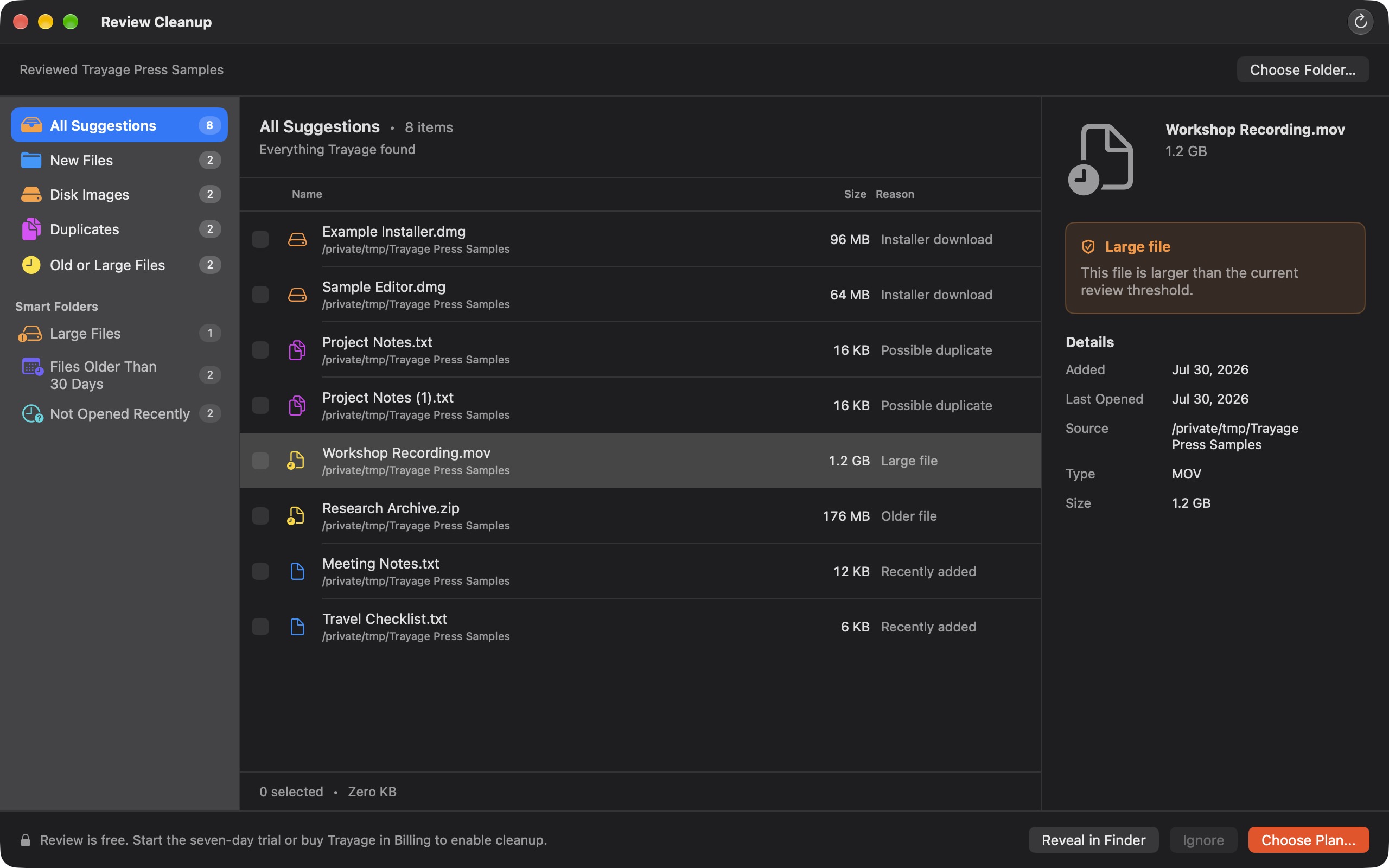
You choose what moves to Trash and confirm before cleanup. The app never empties Trash. Its likely-duplicate suggestions use filenames and sizes, without comparing contents. See your first Trayage review for the full sequence.
If you would rather automate filing rules or explore storage across a disk, our Mac utility comparison explains where other tools fit.
Leave room to change your mind
Review your choices before emptying Trash. A file still in Trash may be put back through Finder; after Trash is emptied, that option is gone. Check automatic Trash-removal settings too, and remember that Trash is not a backup. Apple explains this in its file deletion guide.
Finish by choosing a natural time for the next review: after closing a project or at the end of the week. A repeatable, modest routine is more useful than one enormous cleanup you put off again.
Find downloads
worth checking.
Trayage flags installers, likely duplicates, and large or older files with a reason for each suggestion. Download the Mac app and review your files free. Cleanup has a 7-day trial with no automatic charge. You confirm what moves to Trash.
Try Trayage for Mac