Similar filenames and matching file sizes do not prove that two files contain the same information. Before deleting a possible duplicate on your Mac, compare its contents, check where each copy is used, and decide which one you want to keep. Leave both alone when you cannot tell.
That matters in Downloads, where Invoice.pdf, Invoice (1).pdf, and Invoice-final.pdf can sit together for months. They might be repeated downloads. They might also be invoices for different orders, or a document you edited after downloading it.
Here is a practical way to review a few candidates without treating every familiar filename as something to remove.
What counts as a duplicate file?
An exact duplicate has the same file contents as another copy. A similar file may share a name, a size, or much of its visible content while still containing differences you care about.
Consider three examples:
- Two downloads of the same receipt: these may contain identical data, but check the order details before choosing one.
- A PDF and an annotated copy: the pages can look almost identical at first glance, while one contains notes or a signature worth keeping.
- Two exports of a photo: the subject can be the same while the resolution, crop, or quality differs. One may be useful for printing and the other for sharing.
Even identical contents do not make every extra copy unnecessary. A copy in a project folder may be there because that project needs it. A backup is an intentional extra copy.
Why names, sizes, and dates are only clues
A numbered filename such as Report (1).pdf is a reason to investigate, not a verdict. Different documents can have the same name, and identical documents can have different names.
File size has the same limitation. Two different files can contain the same number of bytes. A displayed size can also be rounded, so an apparent match in Finder is not a precise content comparison.
Dates help you reconstruct what happened, but “newer” does not always mean “better.” A fresh download can be an older version of a document you already edited. Look for the information or changes you need, rather than choosing by date alone.
Compare possible duplicates in Finder
Start with two or three files in Downloads. Keep a current backup of important documents before a cleanup session.
- Check each file’s location. Make sure you understand which folder each copy belongs to. Avoid collecting files from unfamiliar application folders into a cleanup batch.
- Inspect the file information. Select a file and press Command-I, or choose File → Get Info. Compare its kind, size, and dates with the other copy. Apple’s Get Info guide explains this view.
- Preview the contents. Select a supported file and press Space for Quick Look. For a PDF, compare the relevant pages, names, amounts, annotations, and signatures. For an image, check the dimensions and whether either copy has useful edits. Apple documents the controls in its Quick Look guide.
- Open a known, trusted document in its usual app if the preview is incomplete. Check details that the preview does not show. Do not launch an unfamiliar installer just to compare it.
- Choose the copy you need and confirm it opens. If you cannot confidently identify an unnecessary copy, keep both for now.
A visual comparison can help you make a practical decision, but it does not prove that every byte matches. When exact equality matters, use a tool that explicitly compares file contents and understand what it checks. Matching contents still leave the separate question of whether you need both copies in their current locations.
How Trayage helps you review likely duplicates
Trayage brings likely duplicates, installers, and old or large downloads into a focused review. You can inspect a candidate and reveal it in Finder to take a closer look before selecting anything for cleanup.
The direct-download edition described here, Trayage 1.0, identifies likely duplicates using normalized filenames and file sizes. It does not compare their contents. Its suggestions help you find files to inspect; they are not verification that the files are identical.
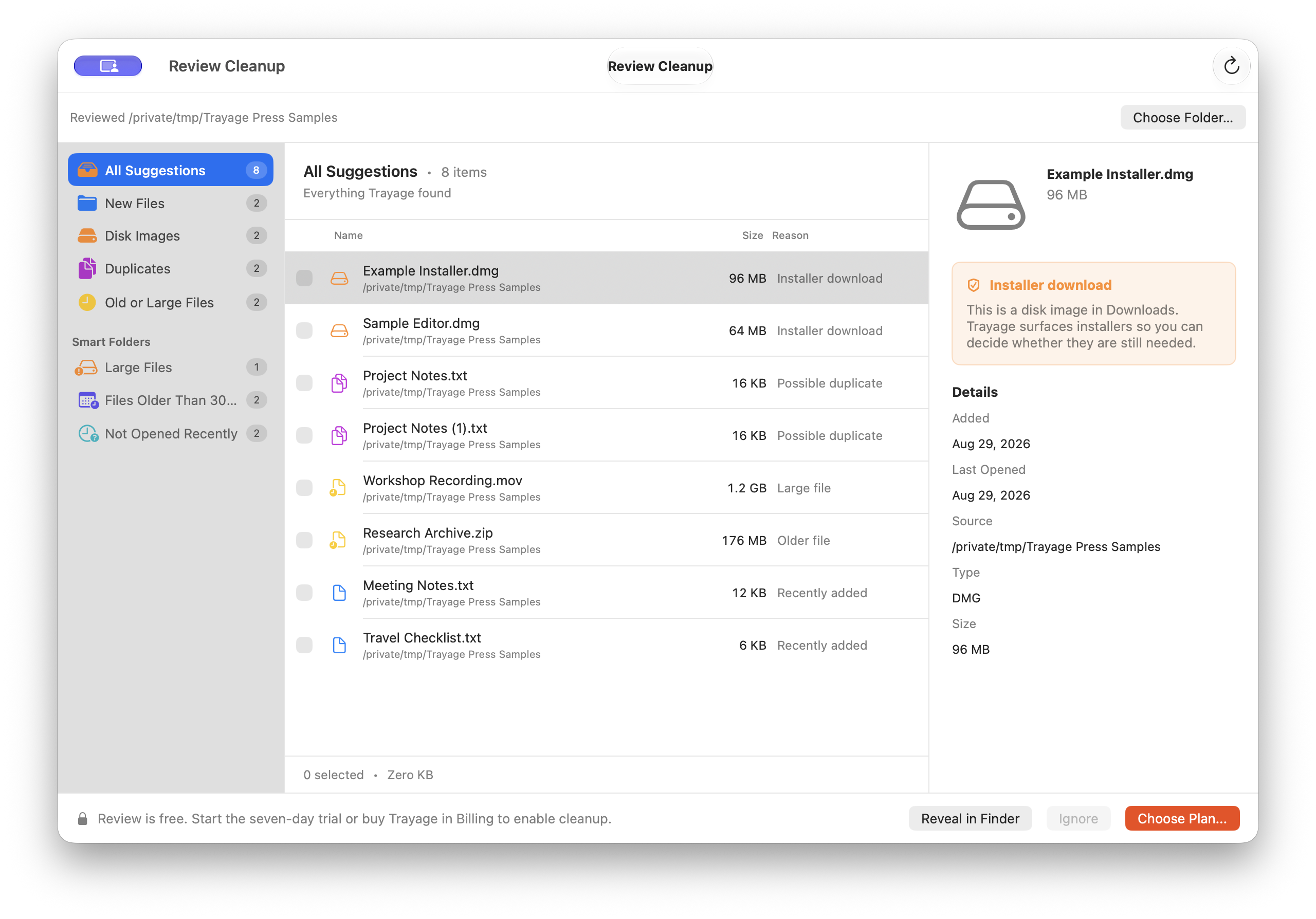
The current direct scanner reviews top-level files in the folder you choose, rather than recursively searching every subfolder. File analysis happens on your Mac. You choose the files to remove and confirm the move to Trash; Trayage never empties it. The privacy page explains licensing and other service connections.
To try this workflow, download the Trayage installer for Mac (DMG). It supports Apple silicon and Intel Macs running macOS 14 or later. See the installation instructions and trial details before your first cleanup.
Keep the field guide nearby
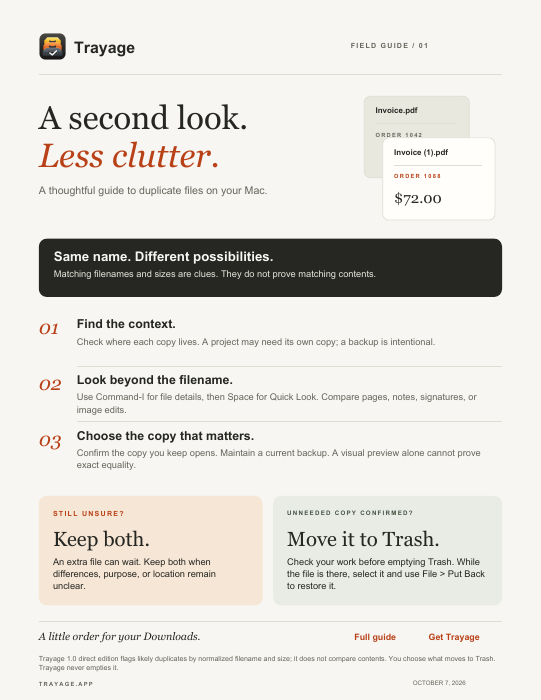
Trayage field guide / 01
A second look. Less clutter.
A one-page companion for your next review, with three practical checks and a simple keep-or-remove decision. Designed for US Letter paper; choose Fit when printing on A4.
Download the printable field guide (PDF)Give yourself time to check the result
Once you have identified an unnecessary copy, move only that file to Trash. Keep working with the copy you retained before deciding to empty Trash.
If you notice a mistake while the file is still there, open Trash, select it, and choose File → Put Back. Check whether automatic removal from Trash is enabled, too. Apple’s deletion and recovery guide explains those options. Trash is temporary recovery space, not a backup.
For a broader cleanup, follow our Downloads folder review routine. If your candidates are old installers, read what to check before deleting a DMG. A small batch you understand is a better stopping point than a large selection you are still unsure about.
A thoughtful second look
Meet your Downloads.
With a little help.
Trayage brings installers, likely duplicates, and old or large files together for your review. File analysis stays on your Mac. You choose what moves to Trash.
Get Trayage



