Downloads is a convenient landing place. A receipt, an installer, a PDF someone sent you: they all arrive in the same folder, even though they matter for very different reasons.
The tricky part of cleaning it up is deciding what still matters. Start with a small batch, give important files a permanent home, and leave uncertain items alone until you can check them.
Start with the files you want to keep
Before removing anything, look for files you would have trouble replacing: personal records, work you have edited, purchased downloads, or documents that no longer exist at their original link. Keep a current backup of anything important.
Move those files into a folder you already use, such as a project folder or a clearly named folder in Documents. You do not need an elaborate filing system. A receipt is easier to find in “Home repairs” than among fifty unrelated downloads.
If a file belongs to an active project or another app expects it in its current location, check that workflow before moving it.
Review a small batch in Finder
Open Downloads in Finder and switch to List view. Use the column headings to sort by size, kind, or date, depending on what you want to review. Apple’s Finder guide explains the available views and grouping options.
Try one pass through each of these groups:
- Installers you recognize. Check that the app is installed and works before removing its installer.
- Files you downloaded more than once. Open or preview each candidate and compare what it contains before choosing a copy to keep.
- Large files. A video export or archive may explain much of the clutter. Confirm whether it is your only copy.
- Older files. Age is a useful way to narrow your attention, but an old document can still be important.
For unfamiliar documents, select the file and press Space for Quick Look where supported. Avoid opening an unknown installer just to find out what it is.
A date, size, or familiar filename can help you decide what to inspect. None of them can tell you whether you still need a file.
Check installers and possible duplicates
A downloaded disk image and the app installed from it are usually separate items. Before removing the disk image, quit the app, eject the mounted image, and open the installed copy from Applications. Our guide to deleting DMG files walks through that check and the exceptions.
For possible duplicates, do more than compare the names. “Invoice.pdf” and “Invoice (1).pdf” could be two downloads of the same invoice, or they could contain different information. Even a matching file size does not prove matching contents. Keep both when you are unsure.
Use Trayage for a focused review
Trayage brings several of those review signals into one place. Choose Downloads, or another folder, and look through installers, likely duplicates, and old or large files. The current scanner reviews top-level files in the selected folder; it does not recursively review every subfolder.
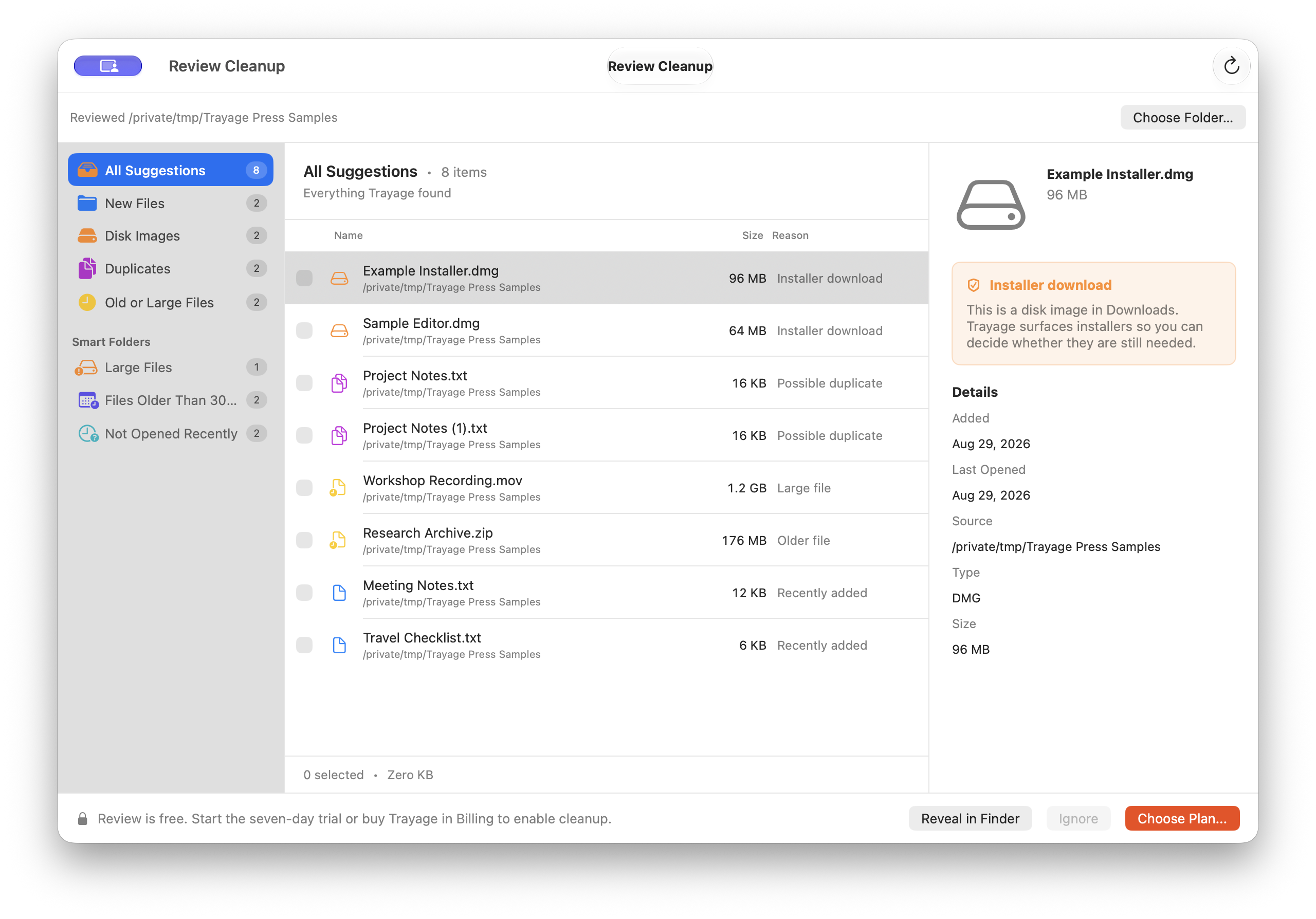
Select a file to inspect its details, and reveal it in Finder when you need a closer look. Trayage’s likely duplicate suggestions use normalized filenames and file sizes, without comparing contents. Its installer check looks for a similarly named app in Applications; you still need to verify that installation yourself.
When you have chosen what to remove, review the selection and confirm the move to Trash. File analysis happens locally, and Trayage never empties the Trash. The privacy page explains licensing and other service connections separately.
Give yourself a chance to catch mistakes
In Finder, you can move a selected file to Trash with Command-Delete. If you change your mind while the file is still there, open Trash, select it, and choose File → Put Back. Apple documents both actions in its guide to deleting files and folders.
Leave Trash unemptied until you have checked that you kept everything you need. Check whether Finder’s automatic removal setting is enabled, too: Trash is a temporary recovery opportunity, not a backup. Emptying it permanently removes the files; moving files there alone does not immediately reclaim their storage space.
Make the next cleanup smaller
After this first pass, try a short weekly review. File away what you want to keep, check installers you have finished using, and revisit a few uncertain items.
There is no prize for reaching an empty Downloads folder. A useful stopping point is knowing where your important files are and understanding what you have chosen to remove.
A thoughtful second look
Meet your Downloads.
With a little help.
Trayage brings installers, likely duplicates, and old or large files together for your review. File analysis stays on your Mac. You choose what moves to Trash.
Get Trayage


