The largest file in Downloads is not necessarily the file you should delete first. It might be a video export, a project archive, an installer you still need, or something that would be difficult to replace.
A size column helps you find the files taking up the most room. It cannot tell you which ones have finished their job. Start by finding a few large downloads, then work out why each one is there before deciding what should happen to it.
Here's a practical way to do that in Finder and Trayage.
Start with a size-sorted view in Finder
Open Downloads in Finder and switch to List view. If the Size column is missing, Control-click a column heading and choose Size. Click the Size heading to sort the list, then click it again if necessary to put the largest files first. Apple's Finder sorting guide covers these controls.
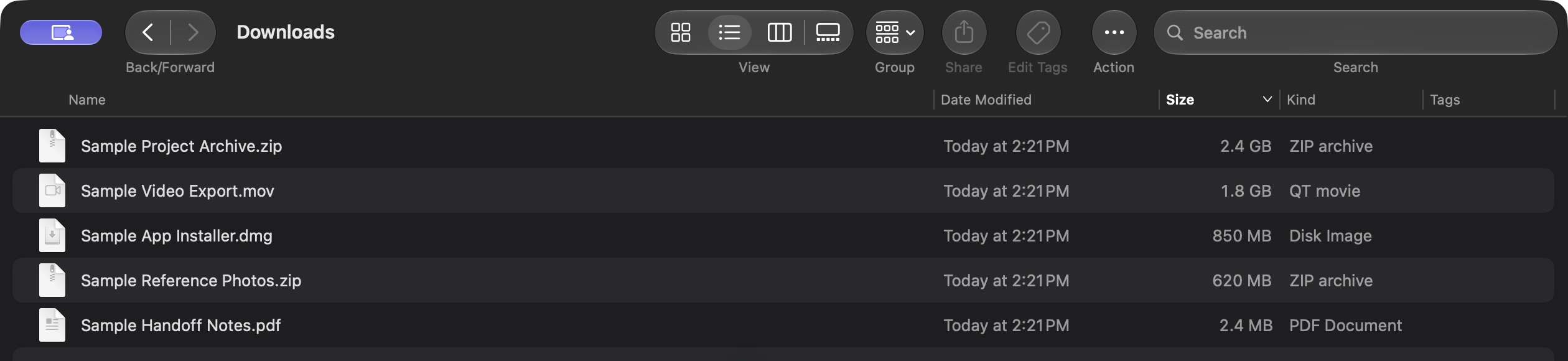
Start with a handful of files you can identify. Downloaded archives, media exports, and disk images often deserve a look, but each may have a good reason to stay.
Treat the displayed size as a file-size measurement, not a promise of exactly how much disk space cleanup will recover. Storage allocation can differ, and moving a file to Trash does not immediately free its space.
Ask what you would lose if the file disappeared
Select a candidate and choose File → Get Info, or press Command-I, to check its details. Apple documents that shortcut in its file information guide. Confirm the file's kind and location as well as its size.
Then ask three questions:
- Is this the only copy? Check that an archive, original recording, or downloaded document exists somewhere reliable before deciding it is disposable.
- Does an active project still need it? An export may be the deliverable. An archive may contain source files that never made it into the working folder.
- Could I get this exact file again? An installer being available online does not mean the same version will remain available, or that your access will last.
For a project archive, verify that the files you need have been extracted and saved. For a video, distinguish the original recording from an export you can recreate. For an installer, check that installation is complete and the installed app works. The DMG guide walks through that last check.
If you cannot explain what a file is or why it is there, leave it in place while you investigate. Its position at the top of the list is not evidence that it is junk.
Narrow the review with Trayage's Large files filter
Open Trayage's full review window and choose the folder you want to review. Select Large files under Smart filters in the sidebar. If it is not pinned there, open All filters… to find it.
The default Large files rule is File size is at least 1000 MB. Your saved filter may use a different threshold, so read the rule shown above the results. Changing the general review settings does not update an existing saved filter. Use Largest first in the Sort control to start with the biggest matches.
To change the cutoff, choose Edit filter. The editor lets you set File size, is at least, and an amount in MB. Check Preview matching files before choosing Save filter. A lower threshold gives you more files to inspect; it does not make those files less useful.
Trayage reviews eligible files directly inside the chosen folder. Its results do not recursively include everything inside nested project folders. Open the appropriate folder separately when the file you want to inspect is deeper in your folder structure.
Click a file's name to see its details. Clicking the row to inspect it is separate from checking its cleanup checkbox. Read Why it matches, then check the available size, dates, and location. Unknown metadata is a gap in the information, not a reason to remove the file.

Choose Reveal in Finder when you need to inspect the file further. A smart filter gives you a useful starting point; understanding the file still comes from checking it. The Smart Filters guide covers more ways to build a focused review.
Give each file a sensible next step
A review can end with a file staying exactly where it is. Choose the outcome that fits what you have learned:
- Keep it in Downloads if you still need it there. Leave its cleanup checkbox unchecked. If you want it to stop appearing in suggestions, use Hide this suggestion. The file stays in place, and you can restore hidden suggestions in Review Settings.
- Move it to its permanent home through Finder if it belongs with a project, a reference collection, or a backup. Verify the destination before removing any other copy.
- Come back to it if the decision needs more information. A Finder tag can help you keep a small review later queue.
- Choose cleanup only after you have identified the file and decided that you no longer need that copy.
Similar names or sizes are not enough to decide that two files are interchangeable. If that is the question you are trying to answer, use the duplicate-file review guide before removing either copy.
Confirm cleanup separately from review
File review is free. Cleanup is an optional capability; the download page explains the direct and Mac App Store options.
When cleanup is available and you are ready to remove a file, check only the items you have reviewed. Choose Move to Trash…, then check the confirmation before continuing. Matching a filter does not select a file for cleanup.
Trayage moves confirmed files to macOS Trash. It does not empty Trash. If you moved the wrong file and it is still there, use Finder's Put Back command when available. Keep a separate backup of important work and review Trash before emptying it yourself.
There is no need to select every result. Leaving an uncertain archive alone is a useful outcome.
Return after the next big download
After the session, look at Downloads again. You may have moved one archive into its project folder, kept an important export, and removed an installer you finished using. That can be a successful review even if the largest file remains.
Try the same small routine after a project handoff, a batch of media exports, or a week of testing new apps. A few files at a time are easier to understand than a folder-wide sweep.
Download Trayage for Mac and start with a free review. The goal is a Downloads folder where you know what is there and why you are keeping it.
Start with files
worth checking.
Trayage brings installers, possible repeat downloads, and large or older files into one review, with a reason to check each. File review is free. You choose what moves to Trash.
Try Trayage for Mac