Trayage helps you review files in your Mac’s Downloads folder. It shows suggestions, explains why files stand out, and lets you choose what to remove. Nothing moves to Trash just because you review a folder. You select files and confirm the cleanup.
Downloads is the folder where files saved from the internet often land. It might hold a receipt you need, an app installer you have finished with, and a document you downloaded twice. Trayage gives you a place to look through those files together.
Before your first review
Use the download page to check compatibility and get the available Mac edition. Trayage requires macOS 14 or later. File review is free; cleanup includes a 7-day trial in the direct app, with no automatic charge. The direct trial begins on first launch. If you decide to buy, the direct license is US$29.99 once.
Keep a backup of important files. For a first review, start with a small group you recognize. You do not need to empty Downloads or make every decision at once.
Choose the folder you want to review
In Trayage, choose Downloads, or select another folder you want to inspect. The current review looks at the files directly inside that folder. It does not go through every subfolder on your Mac.
This folder choice gives Trayage access to the place you selected. File analysis happens locally. Licensing and purchases have their own service connections, explained on the privacy page.
Look at one suggestion
The review window groups files into categories. You may see disk images used to install apps, likely duplicates, or old and large files. Recent files are also visible.
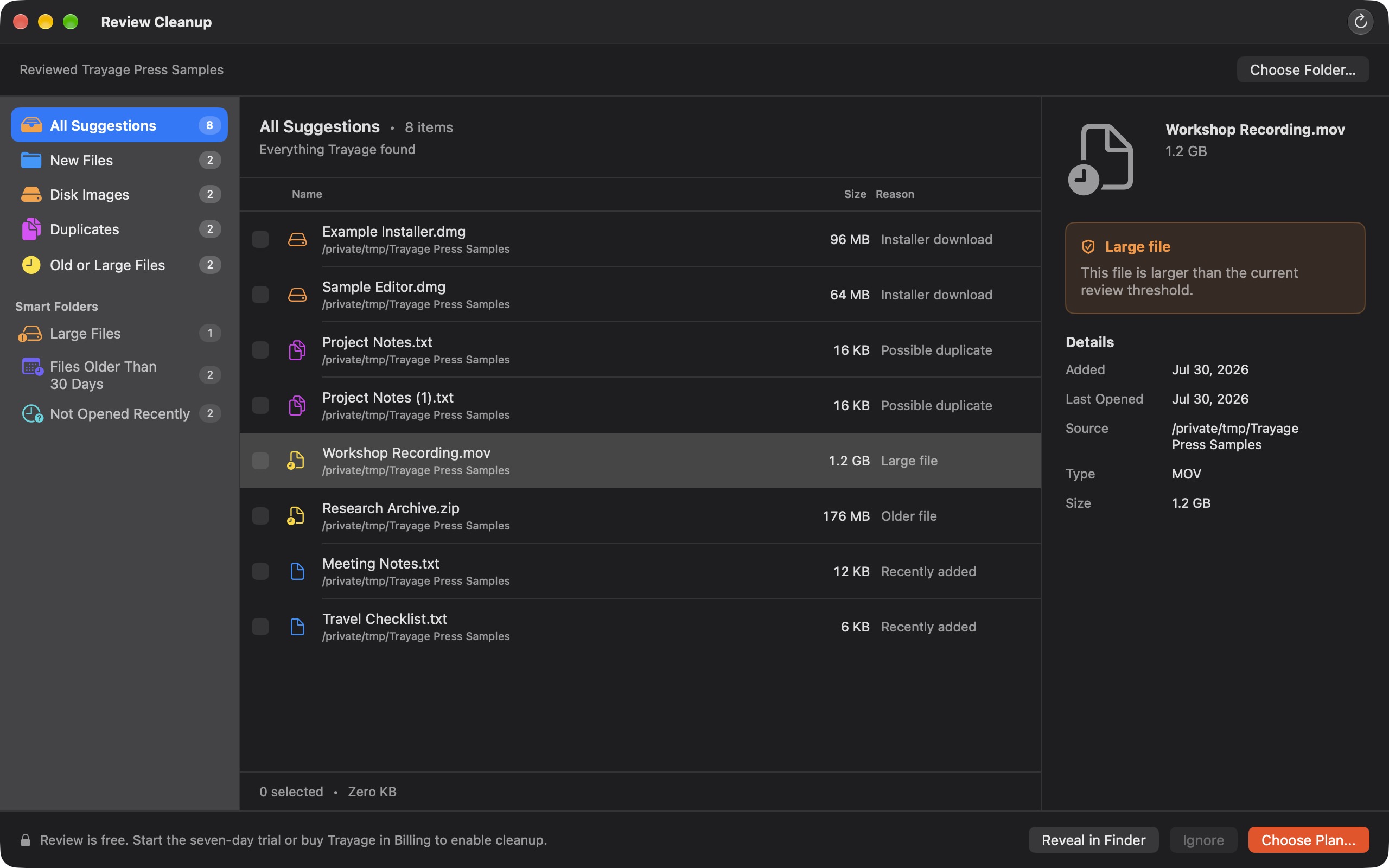
A suggestion is a starting point, not an instruction to delete. A large video could be your only copy. An old receipt could still be important. Two downloads with similar names could contain different information.
Select a file to read its details. Use Reveal in Finder when you need to find it in the Mac’s file browser and look more closely. If you are unsure, leave it alone.
Check the files before choosing
For an installer, check that the app is installed and works independently of the downloaded disk image. Our DMG guide explains what to look for.
For likely duplicates, compare the actual files. Trayage uses filenames and file sizes to flag candidates; it does not compare their contents. The duplicate-file guide explains why matching names are not enough.
Files you want to keep do not need to be selected. You can ignore a suggestion for the current review and come back to the decision later.
Confirm what moves to Trash
Select only the files you no longer need, then use cleanup and review the confirmation. Once you confirm, those selected files move to the Mac’s Trash. Trayage never empties the Trash.
Trash is temporary storage, not a backup. While a file is still there, Finder may let you restore it using Put Back. Files emptied from Trash are no longer available that way. Apple’s guide to deleting and restoring files explains these actions and automatic removal settings.
Moving files to Trash does not immediately reclaim their storage space. Take time to check your decisions before emptying it yourself.
Stop when you have made one useful decision
A first review can be small: one installer checked, one important file kept, one unfamiliar suggestion left alone. You are learning the workflow, not trying to achieve an empty folder.
If something feels unclear, ask for help or tell Kyle about your first review. Knowing where you paused is useful feedback from the people Trayage is being built for.
Find downloads
worth checking.
Trayage flags installers, likely duplicates, and large or older files with a reason for each suggestion. Download the Mac app and review your files free. Cleanup has a 7-day trial with no automatic charge. You confirm what moves to Trash.
Try Trayage for Mac