A ZIP file can be a finished download, a backup copy, a project handoff or a compressed file you opened once and forgot about. Its name rarely tells you which one.
It is common to find both an archive and an extracted folder sitting in Downloads. That does not automatically make either one disposable. The archive may be the original copy from a client or the only file you can send back later. The folder may contain work you have changed since extraction.
Here is a safer way to work through those files without turning Downloads cleanup into a guessing game.
Step 1: Find archives as a group
Open Downloads in Finder and switch to List view. Sort by Name or Kind to identify ZIP files. Start with a small group rather than selecting everything with the same extension.
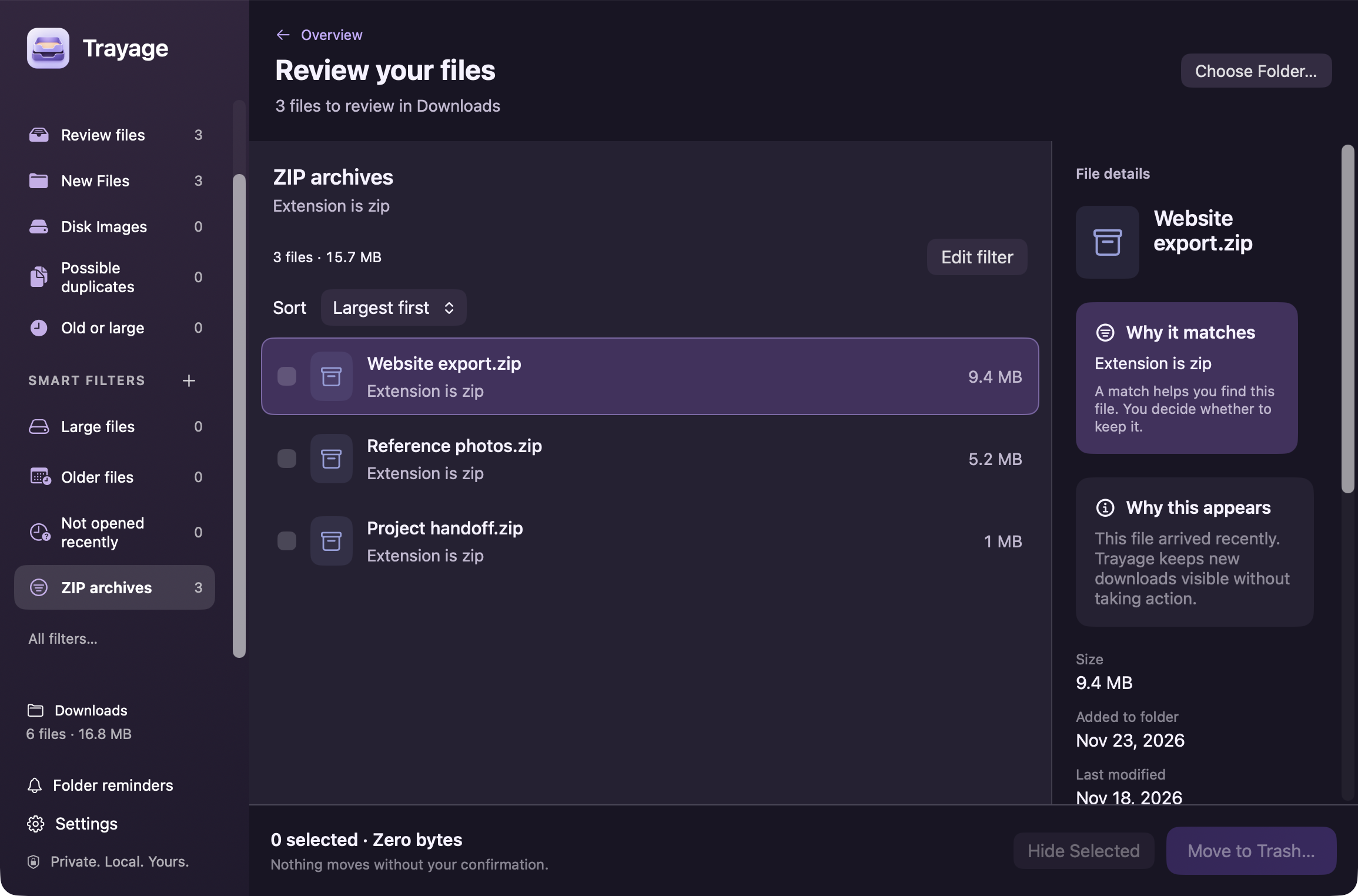
In Trayage, you can review the files in your chosen folder before taking action. To focus on ZIP files, open All filters… under Smart filters, choose Create filter, and give it a name such as ZIP archives. Set the condition to Extension → is → zip. Check Preview matching files, then choose Save filter. The Smart Filters guide explains how saved filters work.
A filtered list is a review aid, not a recommendation to delete all matching files. Matching a filter does not select a file for cleanup.
Step 2: Understand the archive's relationship to the extracted folder
According to Apple's Mac guide, double-clicking a ZIP expands it in the same folder. That is one reason Downloads can collect a compressed item and an apparently identical folder.

Check the ZIP's source and date. Look for an extracted folder with a related name, but don't assume a matching name proves matching contents. If you edited, renamed or added files after extraction, the two can represent different stages of work.
Do not open unfamiliar downloads just to decide whether to remove them. When the source or contents are untrusted, handle them through your ordinary security process first.
Step 3: Decide which copy serves a purpose
Ask three questions:
- Is the ZIP the original deliverable? It may be worth preserving exactly as you received it.
- Do you still need a compressed, unchanged copy? Consider whether you will need to transfer it or restore from it later.
- Has the extracted folder become the working version? Check for changes that exist only in that folder.
If the archive is the only verified original, keep it somewhere intentional. If the ZIP came from a temporary export and you have confirmed the complete files are saved elsewhere, it may be a cleanup candidate. If you cannot answer, leave it alone and return later.
File size and age help you prioritize attention. Neither is proof that an archive is junk. Trayage's duplicate checks should not be interpreted as opening a ZIP and comparing every file inside it against an extracted folder. The duplicate-file review guide explains what a duplicate suggestion can tell you.
Step 4: Review one candidate at a time
Use Finder to inspect file names, locations, dates and the extracted folder. Use Trayage to keep candidate downloads organized for review. Click a file's name to inspect its details, and use Reveal in Finder when you need to check it in its original location. Opening the details is separate from checking the file's cleanup checkbox.
Before selecting any cleanup action, confirm the archive you intend to move and whether the working files exist where you expect them. A ZIP that opens successfully still deserves a contents check before you rely on an extracted copy.
Trayage's useful role is surfacing the candidates and keeping the final choice with the person who understands the files. File review is free. Cleanup is optional. The download page explains the direct and Mac App Store options.
When cleanup is available and you have decided to remove a file, check only that item, choose Move to Trash…, and review the confirmation before continuing. Trayage does not empty the Trash for you. Keep a separate backup of important work, and review Trash before emptying it yourself.
Step 5: Keep a repeatable rule
You don't need a complicated file-retention policy for every download. For project archives, a practical rule is: keep the received original until the project is complete and the important contents are stored in their intended location. Then make an explicit decision about the archive.
That one habit is more useful than a blanket command to remove every ZIP older than 30 days. If you need more time to decide, a Finder tag can help you keep a review-later queue without moving the file to Trash.
Review your own Downloads
Have a few ZIP files and extracted folders that you are unsure about? Download Trayage for Mac to review Downloads for free and decide which files should stay. Confirm any optional cleanup yourself before anything moves to Trash.
Start with files
worth checking.
Trayage brings installers, possible repeat downloads, and large or older files into one review, with a reason to check each. File review is free. You choose what moves to Trash.
Try Trayage for Mac