Downloads can grow quietly. A few installers, a project handoff and a video export arrive during a busy week, and the folder becomes something you mean to check later.
Trayage's optional folder-size reminders give you a useful moment to return. You choose a size threshold, and Trayage can send a notification when the folder is at or above it while the app is running. You can then open a review and decide what still belongs there.
A reminder never selects files or moves anything to Trash. It is an invitation to look at the folder.
Choose a threshold you would act on
There is no single size that makes a Downloads folder too big. If you work with video, a few gigabytes may be normal. If most of your downloads are PDFs and small documents, the same amount might be a useful sign to investigate.
Choose a number that fits your available storage and the files you usually download. For example, 10 GB could be a starting point for someone whose folder normally stays much smaller. It is an example, not a recommended limit for every Mac.
The threshold applies to the measured folder total. It does not mean that each file larger than that amount is unnecessary, or that you should remove files until the total drops below it.
Set up a folder-size reminder
Choose Downloads, or the other folder you want to review, in Trayage. Then open Settings → Review and find Reminders.
- Turn on Notify me when this folder reaches my threshold. Allow notifications if macOS asks and you want to receive them.
- Enter your preferred size in Remind me at, in GB.
- Choose whether to Include subfolders in the size total.
- Decide whether to Show folder name in notifications. Turning this off keeps the folder's name out of the reminder.
- Use Measure Now to check the folder against those settings.
Measure Now can send a real reminder immediately if reminders are enabled, the folder can be measured completely, the threshold is met and macOS permits notifications. It is not a simulated test notification.
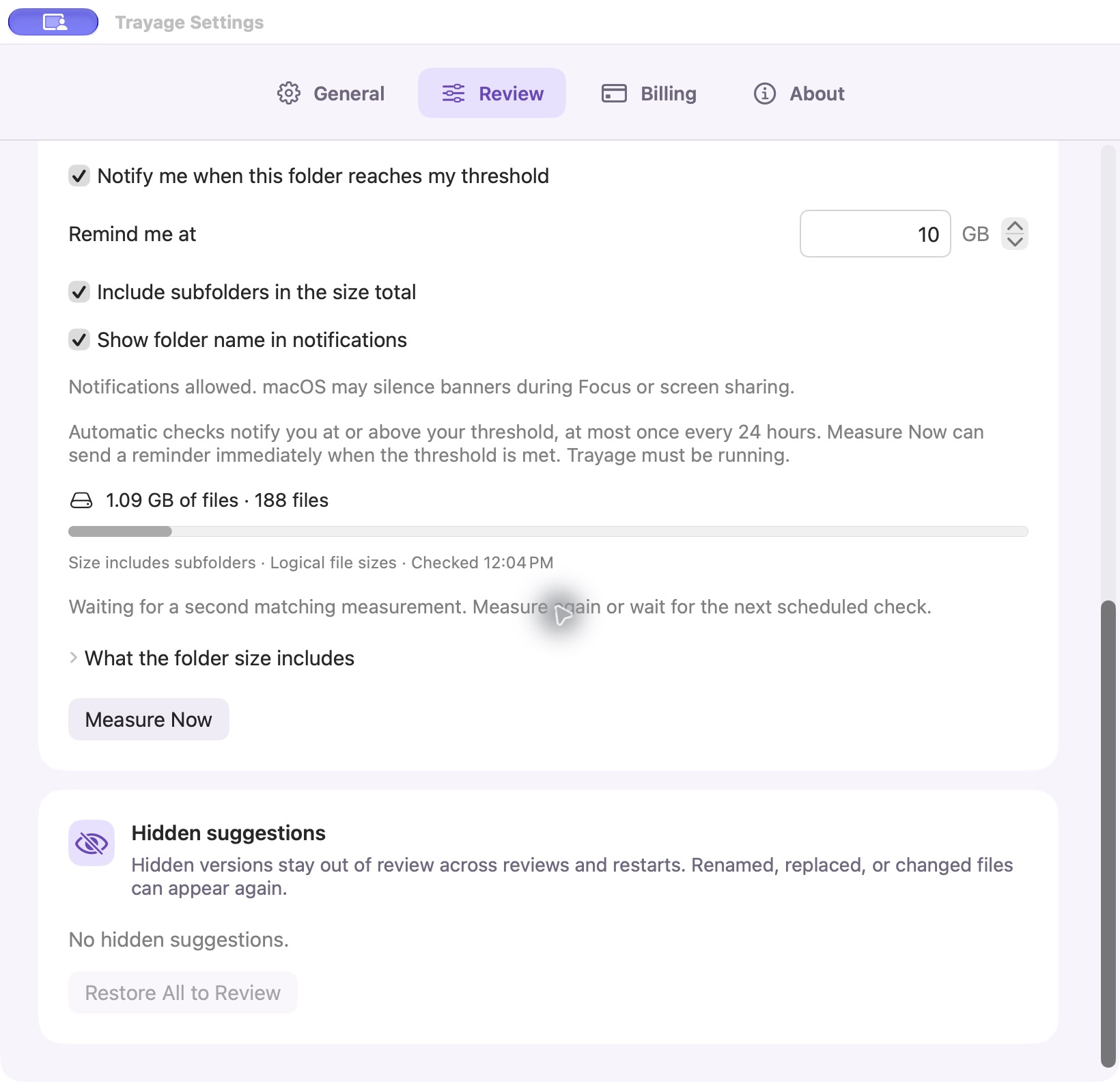
The Folder checks section on the same page controls Check folder every. Trayage uses that interval while it is running to update the size and check enabled reminders.
Know what the size total means
Including subfolders helps you notice growth inside a downloaded project folder as well as files sitting directly in Downloads. Turning the option off narrows the measurement to files directly inside your chosen folder.
The total represents logical file sizes. It is not a prediction of how much disk space cleanup will recover. Hidden files, ignored files and package contents can contribute to the measurement. Cloud-file metadata can also report sizes for files that are not stored locally.
Trayage explains the details under What the folder size includes. Incomplete measurements pause reminders, so an unreadable part of the folder does not silently become a complete result.
There is also a useful distinction between measurement and review: including subfolders in the size total does not make cleanup recursive. Trayage's cleanup review works with eligible files directly inside the chosen folder. Choose a nested folder separately when that is where you need to inspect files.
Give automatic checks time to work
Trayage needs to be running to check the folder. Automatic reminders wait for a complete, stable measurement and can be sent at most once every 24 hours for that folder.
If the folder remains above the threshold, another automatic reminder can be sent after that interval. It does not have to drop below the threshold and cross it again. Deliberately choosing Measure Now can send another qualifying reminder sooner.
Turning off Keep reviews up to date makes review refresh manual; it does not switch off folder-size checks or enabled reminders. To stop the reminders, turn off Notify me when this folder reaches my threshold.
Use the reminder for a short review
When a reminder arrives, open Trayage and look at what has changed. You do not need to clear the whole folder in one sitting.
Start with a small group you recognize: an installer you have already used, an archive from a finished handoff, or a large export whose purpose you can explain. The large-downloads guide offers questions to ask before deciding whether a large file should stay.
Inspect a file's details and use Reveal in Finder when its location or surrounding files would help. If you still need the file, leave it where it is. Hide this suggestion can remove a suggestion from future reviews without moving the file. If the decision needs more time, a Finder tag can mark it for later review.
Possible duplicates deserve their own check. Similar names and sizes are clues; even matching contents do not tell you which location your workflow relies on. The duplicate-file guide walks through that decision.
If you do not see a notification
Check the status text in Settings → Review → Reminders. It can explain whether the folder is below your threshold, waiting for another matching measurement, within the daily reminder limit, or unable to be measured completely.
Also check that Trayage is running, reminders are enabled and the selected folder is still accessible. Review Trayage's notification permissions in macOS System Settings. A reminder accepted by macOS may still be quiet when banners are disabled or Focus suppresses them.
A missing banner is not evidence that Downloads is small. The current measurement and reminder status give you more useful information.
Confirm cleanup when you are ready
File review is free. When optional cleanup is available and you have decided a file is no longer needed, select that file, choose Move to Trash…, and review the confirmation.
Trayage checks selected files again before moving them and leaves changed or inaccessible files in place. It never empties Trash. You can recover files through Finder before you empty it yourself.
A good review can end with everything staying where it is. The useful outcome is understanding why the folder grew and which files still have a purpose.
Download Trayage for Mac to review your files for free and set a reminder that fits your routine.
Start with files
worth checking.
Trayage brings installers, possible repeat downloads, and large or older files into one review, with a reason to check each. File review is free. You choose what moves to Trash.
Try Trayage for Mac